An Alpha account is the viewer account type on LovesFeet. This guide covers the information requested by the public registration form and the documented email and profile steps. Creating an account is separate from optional third-party identity verification.
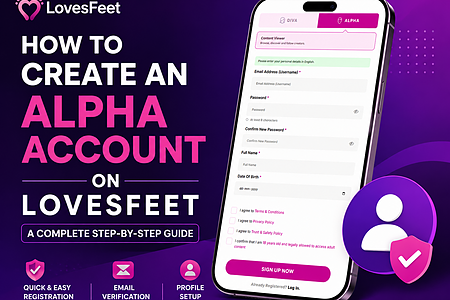
Alpha is the viewer account type. The current public form requests an email address, password, full name and date of birth. It includes age confirmation and policy acknowledgements. The form describes Proper User verification as optional and provided by a third party.
Start by opening the LovesFeet registration page.
Account information: Open the Alpha registration form.
You'll see two account types:
Select Alpha to begin the viewer registration process.
The Alpha option is labeled Content Viewer, with a short description explaining that Alpha users can browse, discover, and follow creators.
This makes it easy to choose the correct account type before entering your information.
After selecting Alpha, you'll be asked to complete the registration form.
The form requires several basic details:
The password must contain at least 8 characters, so choose something strong and unique that you don't use on another website.
Your date of birth is also an important part of the registration process because LovesFeet is an adult platform. You must confirm that you are 18 years old or older and legally permitted to access adult content.
Take a moment to check your information before continuing. Using the correct email address is particularly important because you'll need access to it for the next verification step.
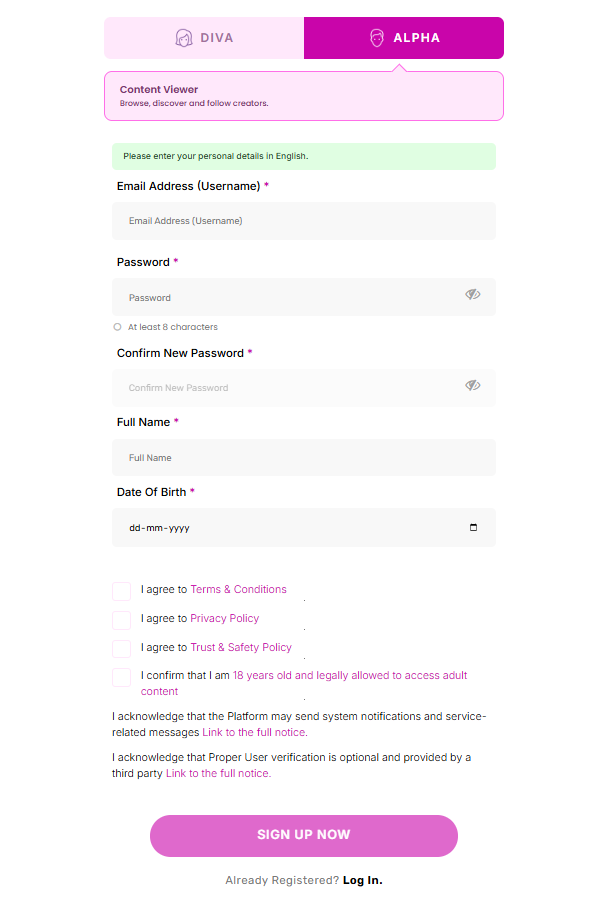
Before you can create the account, LovesFeet asks you to acknowledge several important terms and policies.
You'll need to agree to the platform's:
You'll also need to confirm that you are 18 years old and legally allowed to access adult content.
There are additional notices explaining that the platform may send system notifications and service-related messages, and that Proper user verification is optional and provided by a third party.
It's worth reading these policies before accepting them. Understanding how a platform handles your account, privacy, and safety helps you make informed decisions about using the service.
Once the required options have been selected, click Sign Up Now.
After submitting your registration form, the next step is email verification.
LovesFeet sends a 6-digit One-Time Password (OTP) to the email address you provided during registration.
You'll see six separate fields where you can enter the OTP. Enter the code exactly as it appears in the email and click Verify.
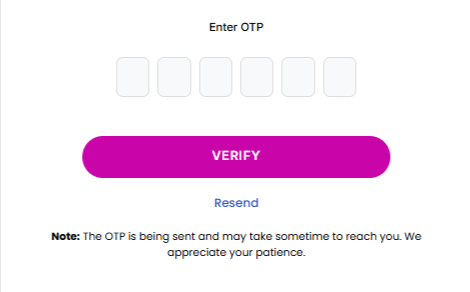
If the code doesn't arrive immediately, don't worry. Email delivery can sometimes take a little time.
Check your Spam or Junk folder first. If you still don't see the email, wait a few moments and use the Resend option.
Make sure you're checking the same email address you used when registering.
Email verification is an important security step because it confirms that you have access to the email account associated with your LovesFeet profile.
After successfully verifying your email, you'll move to the Profile Setup stage.
This is where you provide the information that will be used to create your LovesFeet profile.
The profile setup screen asks for information such as:
The Stage / Display Name and Handle are particularly important because they help identify your profile on the platform.
Your handle should be easy to remember and consistent with how you want to appear on LovesFeet. Your display name can be used to give your profile a more personal identity.
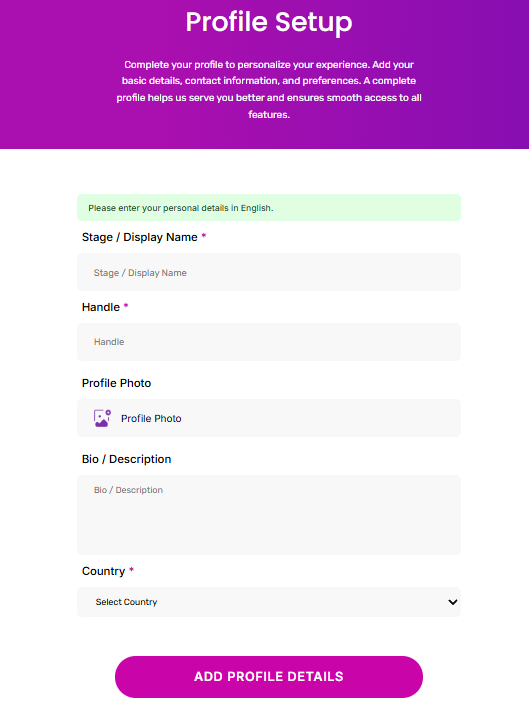
Although your profile photo is not marked as required in the setup form, adding one can make your profile feel more complete.
A recognizable and appropriate image can also make it easier for other members to identify your account when interacting with you.
The Bio / Description field gives you an opportunity to introduce yourself.
You don't need to write a long paragraph. A few natural sentences about your interests and what you enjoy discovering on the platform can be enough.
A complete profile generally feels more welcoming than one with only the minimum information.
You'll also need to select your country from the available list.
Providing accurate information helps keep your account details complete and supports the platform's location and language-related features.
Once you've finished entering your information, click Add Profile Details.
What would help you most when creating an Alpha account?
After completing the profile setup, your Alpha account creation process is complete.
At this point, you've gone through the key onboarding requirements:
Registration → Email Verification → Profile Setup
The process is designed to make sure that new users provide the necessary account information, verify their email address, confirm their age eligibility, and create a basic profile before getting started.
You can now use your Alpha account to explore LovesFeet as a content viewer.
The account type is labelled for viewing, discovering and following creators. Availability of an action depends on the current account and page controls. Registration does not itself establish third-party verification status.
You must be 18 years old or older and legally allowed to access adult content.
The email verification code contains 6 digits. Enter the complete code on the verification screen and select Verify.
Check your Spam or Junk folder first. If the email hasn't arrived, wait a few moments and use the Resend option.
The registration screen states that Proper user verification is optional and is provided by a third party. The required Alpha onboarding shown in this process includes account registration, email verification, age confirmation, and profile setup.
An Alpha account is intended for content viewers who want to browse, discover, and follow creators. A Diva account is designed for creators who want to build a creator profile and share content on LovesFeet. For related guidance, see Diva account guide.
What is your main reason for creating a LovesFeet account?
Before continuing, check that you selected the intended account type and understand which details are used for registration. Use the Diva account guide to compare account types, or contact support if the displayed process differs from these instructions.

 Hebrew
 Russian
 Arabic



Share your thoughts